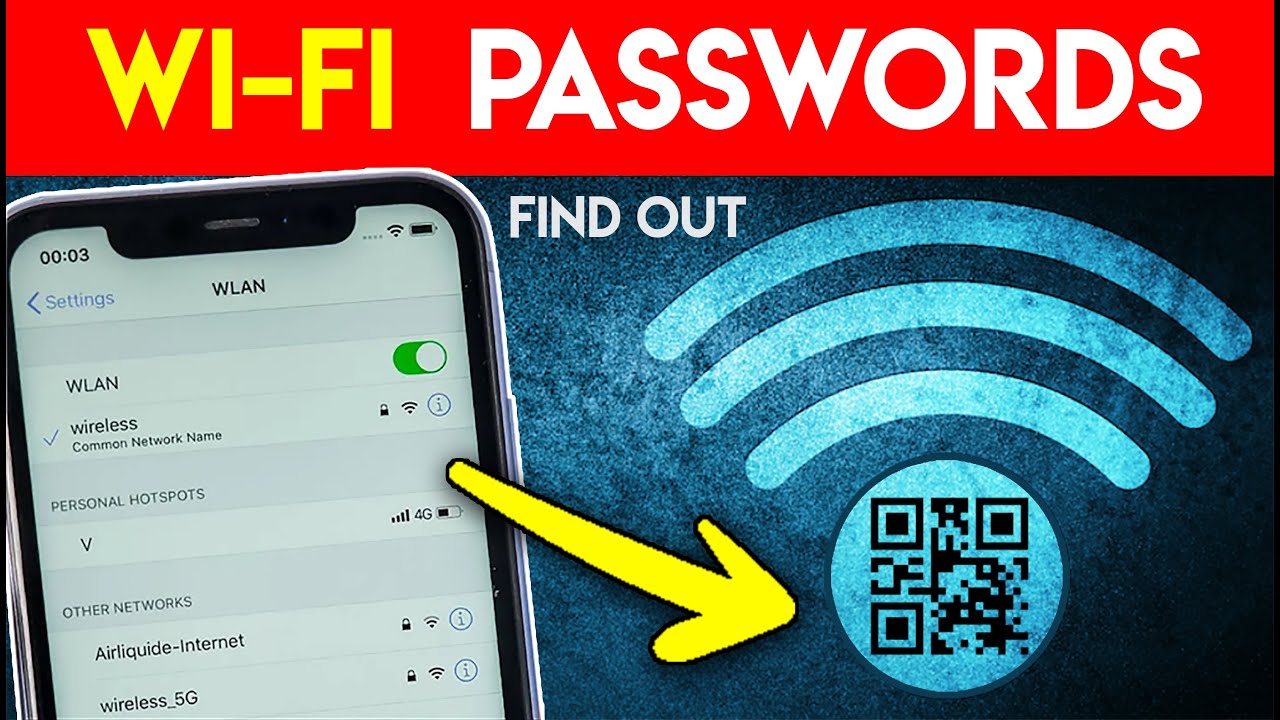
How to Find Any WiFi Password: Easy and Safe Methods in 2026
WiFi has become an essential part of our daily lives, helping us browse the internet, watch videos, attend online meetings, and connect our devices. However, forgetting a WiFi password can be frustrating, especially when you want to connect a new mobile phone, laptop, or tablet. Many people search online for ways to find any WiFi password quickly and easily.
In this guide, you will learn how to find a saved WiFi password, check your router’s WiFi details, and recover access to a network you own or have permission to use. These methods are simple, practical, and suitable for Android phones, iPhones, Windows computers, and other compatible devices.
What Is a WiFi Password?
A WiFi password is a security key that protects a wireless network from unauthorized access. When a network uses WPA2 or WPA3 security, users generally need the correct password to connect.
Some routers use a default WiFi password printed on a label attached to the device. Other networks have custom passwords created by their owners. If you forget a password, you can often recover it without changing your internet settings.
Remember that you should only access networks you own or have permission to use.
1. How to Find a Saved WiFi Password on Android
Many Android phones allow users to view or share the password of a WiFi network they have already connected to.
Follow these steps:
- Open Settings on your Android phone.
- Select WiFi or Network & Internet.
- Tap your currently connected WiFi network.
- Choose Share or WiFi QR Code.
- Confirm your identity using your screen lock if requested.
- Scan the QR code with another compatible device or check whether your phone displays the password.
The exact steps may differ depending on your Android version and phone manufacturer. Some devices display the password directly, while others provide only a QR code that another device can scan.
This is one of the easiest ways to recover a saved WiFi password without installing additional applications.
2. How to Find a WiFi Password on an iPhone
iPhones running supported versions of iOS provide a convenient way to view saved WiFi passwords.
To check a password:
- Open the Settings application.
- Tap WiFi.
- Select the information icon beside the connected network.
- Tap Password.
- Authenticate with Face ID, Touch ID, or your device passcode.
- View or copy the password displayed on the screen.
Depending on your iOS version, you may also be able to find previously saved network passwords through the WiFi settings or the Passwords application.
This feature is useful when you want to connect another personal device to the same wireless network.
3. Find Your WiFi Password on a Windows Computer
If your Windows laptop or desktop is already connected to a WiFi network, you may be able to recover its saved password.
On supported Windows versions, open Settings and navigate to Network & Internet, then WiFi. Look for the network properties or saved-network security options available on your version of Windows.
You can also check the router’s configuration page if you have administrator access. The available steps depend on your Windows version and network settings.
For work or school computers, follow your organization’s IT policies before accessing or changing saved network information.
4. Check the WiFi Router
Another reliable method is to check the router itself. Many internet routers have a label on the back or bottom containing the default network name (SSID) and WiFi password.
If the password has not been changed, these details may help you connect immediately.
If someone previously changed the password, contact the network owner or sign in to the router’s official administration page with authorization. The administrator may be able to view or change the wireless security settings.
Avoid resetting your router unless necessary, because a factory reset can remove customized internet and WiFi settings.
5. Can a WiFi Password Finder App Work?
Many applications advertise themselves as WiFi password finder apps. However, not every application can reveal passwords for nearby protected networks.
A legitimate WiFi utility may help you manage saved connections, display network information, test internet speed, or share access through a QR code. It cannot automatically reveal the password of every secured WiFi network.
Be cautious of apps that request unnecessary permissions, promise to hack any WiFi password instantly, or ask you to install suspicious files. Download applications only from trusted sources and review their permissions before installing them.
6. How to Connect to WiFi Without Typing the Password
If the network owner agrees, you may be able to connect using a WiFi QR code, a supported password-sharing feature, or a guest network.
Ask the owner to open the network-sharing option on their phone or router and provide the QR code or guest credentials. Scan the code using your compatible device and follow the instructions displayed on the screen.
This method is convenient because it reduces typing errors and helps the owner share access without announcing the password publicly.
Tips for Keeping Your WiFi Secure
To protect your home network, use a strong, unique password and enable WPA2-AES or WPA3 security when supported. Change the router’s default administrator password, update its firmware, and disable WPS if you do not need it.
You should also avoid sharing your main WiFi password with unknown people. A guest network can provide internet access to visitors while keeping your primary devices separate.
Conclusion
Finding a saved WiFi password is possible through several simple methods, including Android WiFi sharing, iPhone settings, Windows network options, and your router’s configuration page. These solutions can help you recover access without relying on suspicious third-party applications.
App Link
Although people often search for terms such as find any WiFi password, WiFi password finder app, and how to see a saved WiFi password, no legitimate method guarantees access to every protected network. Always obtain permission before connecting to someone else’s WiFi.
Use these safe techniques to recover your own network password, connect your devices, and enjoy a more convenient internet experience.