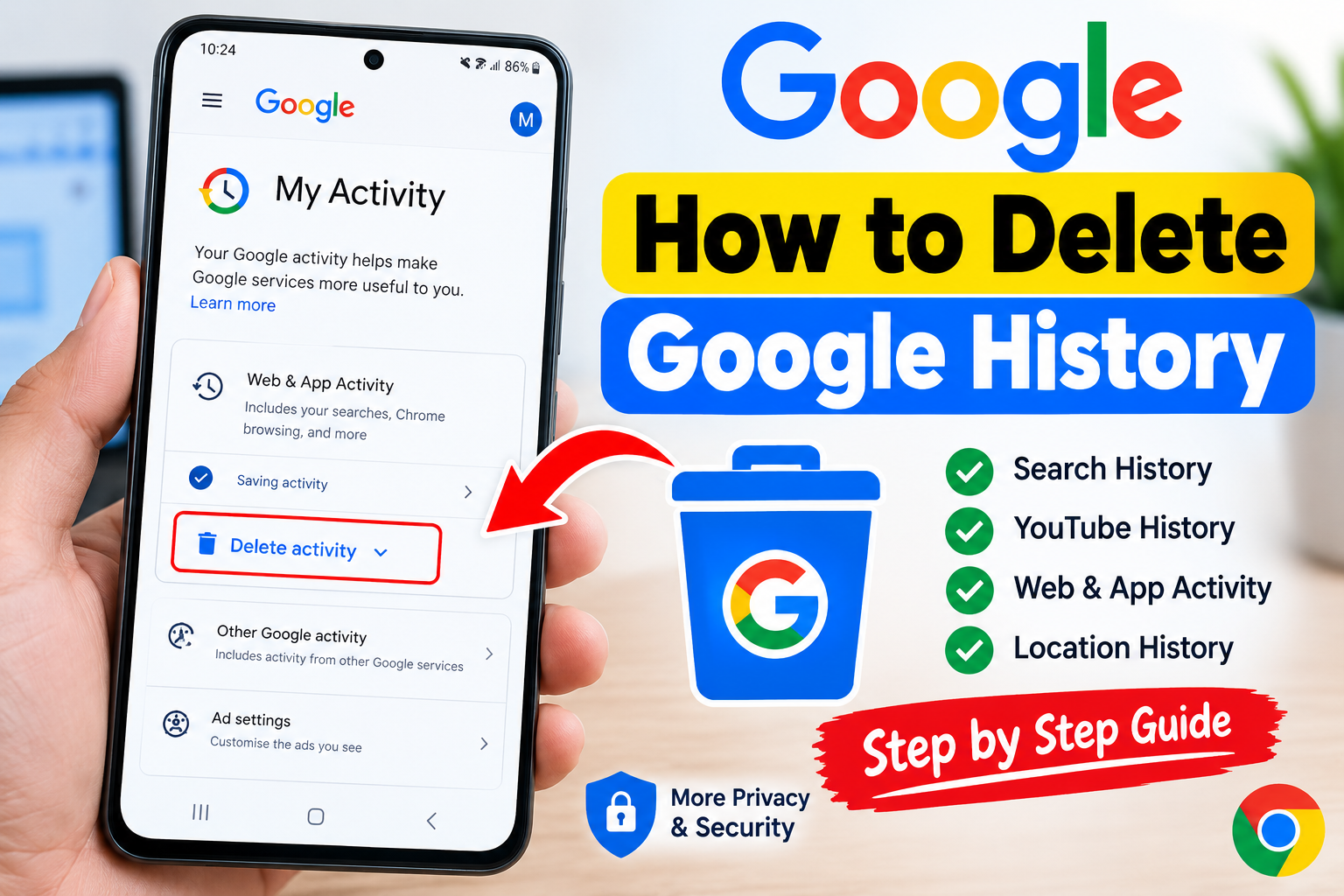
How to Delete Google & Google Chrome History in 2026
Google keeps a record of many activities associated with your Google Account, including searches, websites you visit through certain Google services, YouTube activity, and other interactions. This history can make your online experience more convenient, but some users may prefer to delete it for privacy, security, or simply to keep their account organized. In 2026, Google provides several straightforward options for reviewing and deleting your activity.
What Is Google History?
Google history generally refers to activity saved to your Google Account. Depending on your settings and the Google services you use, this can include Google Search history, browsing-related activity, YouTube searches and watch history, location-related activity, and other account activity.
It is important to understand that deleting one type of history does not necessarily delete every record associated with your Google Account. Different Google services may have separate history settings, so you should check the relevant activity controls.
How to Delete Google Search History
The easiest way to remove Google Search activity is through your Google Account.
First, open the Google app or visit your Google Account while signed in. Look for the section related to Data & Privacy and open your activity controls. You can then access My Activity, where Google displays activity saved to your account.
From there, you can review individual searches and remove specific items. You can also select a larger time period if you want to clean up more of your activity.
Depending on the options available in your account, you may be able to delete activity from the last hour, the last day, a custom period, or all available activity.
Delete Google History on Android
Android users can delete Google activity directly from the Google app or their account settings.
Open the Google app and tap your profile picture. Select the option for managing your Google Account, then open Data & Privacy. Find your activity settings and open your Google activity page.
Review the available history and choose the items you want to remove. If you want to delete everything within a particular period, use the available deletion controls.
The exact menu names can change as Google updates Android and its apps, so the layout may look slightly different on different phones.
Delete Google Chrome Browsing History
Google Search history and Chrome browsing history are not exactly the same thing. If you use Chrome, you may also want to clear browsing data stored by the browser.
Open Chrome on your phone or computer and access the browser’s history or privacy settings. Choose Delete browsing data or the equivalent option. You can select the time range and choose which types of data to remove, such as browsing history, cookies, cached files, or other saved information.
If Chrome sync is enabled, deleting synchronized browsing data can affect other devices connected to the same Google account.
Automatically Delete Google Activity
If you do not want to manually delete your history regularly, Google also provides automatic deletion controls for certain types of activity.
You can open your Google Account’s activity settings and look for automatic deletion options. Depending on the activity type and account settings, you may be able to choose an available retention period.
Automatic deletion is useful for people who want better privacy without having to remember to clean their account every few weeks or months.
Why Should You Delete Google History?
There are several reasons someone might want to delete Google history. Privacy is one of the biggest reasons. Removing old activity can reduce the amount of information stored in your account.
Deleting history can also help you keep your account organized. If your previous searches are influencing suggestions that you no longer want, clearing relevant activity may make your Google experience feel cleaner.
However, deleting history does not make you completely anonymous online. Your internet provider, employer, school, websites, apps, or other services may have their own records and privacy policies.
Check Before Deleting
Before deleting Google history, remember that some activity may be useful. Search history can help you quickly find previous information, while YouTube history can influence recommendations.
If you only want to remove a few searches, consider deleting individual items rather than clearing everything. This allows you to maintain useful history while removing activity you no longer want saved.
Final Words
Deleting Google history in 2026 is relatively simple. You can remove individual searches, clear activity for a selected period, manage Chrome browsing history, or configure automatic deletion where available. The best option depends on how much activity you want to remove.
For better privacy, regularly review your Google Account’s activity and privacy settings. Remember that deleting Google Account activity and clearing Chrome history are separate actions, so check both if your goal is to remove your stored Google-related history as thoroughly as possible.
